

AI Video to Screenshots Agent by iWeaver
Capture multiple screenshots from your videos instantly for previews, blogs, or documentation.
How to Capture Video Screenshots with iWeaver
Upload Video
Drag and drop your MP4, MOV, AVI, or WebM file into iWeaver. The video loads directly in your browser for immediate frame navigation.
Locate Frames
Use the timeline scrubber or step through frames one by one to find the exact moment. Enter a specific timestamp for precise positioning.
Export Screenshots
Capture selected frames as PNG or JPG files at the original video resolution. Download individual images or batch export multiple frames as a ZIP package.
Why Choose iWeaver as Your Video Screen Grabber?
Original Resolution Output
Every extracted frame matches the source video resolution pixel for pixel. A 1080p video produces 1920×1080 images, and 4K footage yields 3840×2160 stills — no downscaling, no recompression artifacts.
Frame-Level Navigation
Step forward or backward one frame at a time instead of guessing with a pause button. Precise timeline scrubbing and timestamp input let you land on the exact expression, angle, or diagram you need.
Flexible Export Formats
Choose PNG for lossless quality when detail matters, or JPG for smaller file sizes when sharing online. Both formats export without watermarks, ready for direct use in listings, slides, or social posts.
Batch Frame Capture
Set a time interval and let iWeaver automatically capture frames at regular steps across the entire video. Collect dozens of screenshots in one pass and download them together as a single ZIP file.
Multi-Format Video Input
Load MP4, MOV, AVI, and WebM files without converting first. iWeaver handles common container formats and codecs so you spend time selecting frames, not troubleshooting compatibility issues.
Use Cases for Video Frame Capture
Product Angle Shots
E-commerce sellers often record a single 360-degree product video but need individual still images showing each angle for their listing gallery. iWeaver lets you step through the rotation frame by frame, capture every key angle as a full-resolution PNG, and export them in one batch — replacing hours of manual pausing and cropping.
Capture Product FramesLecture Handout Images
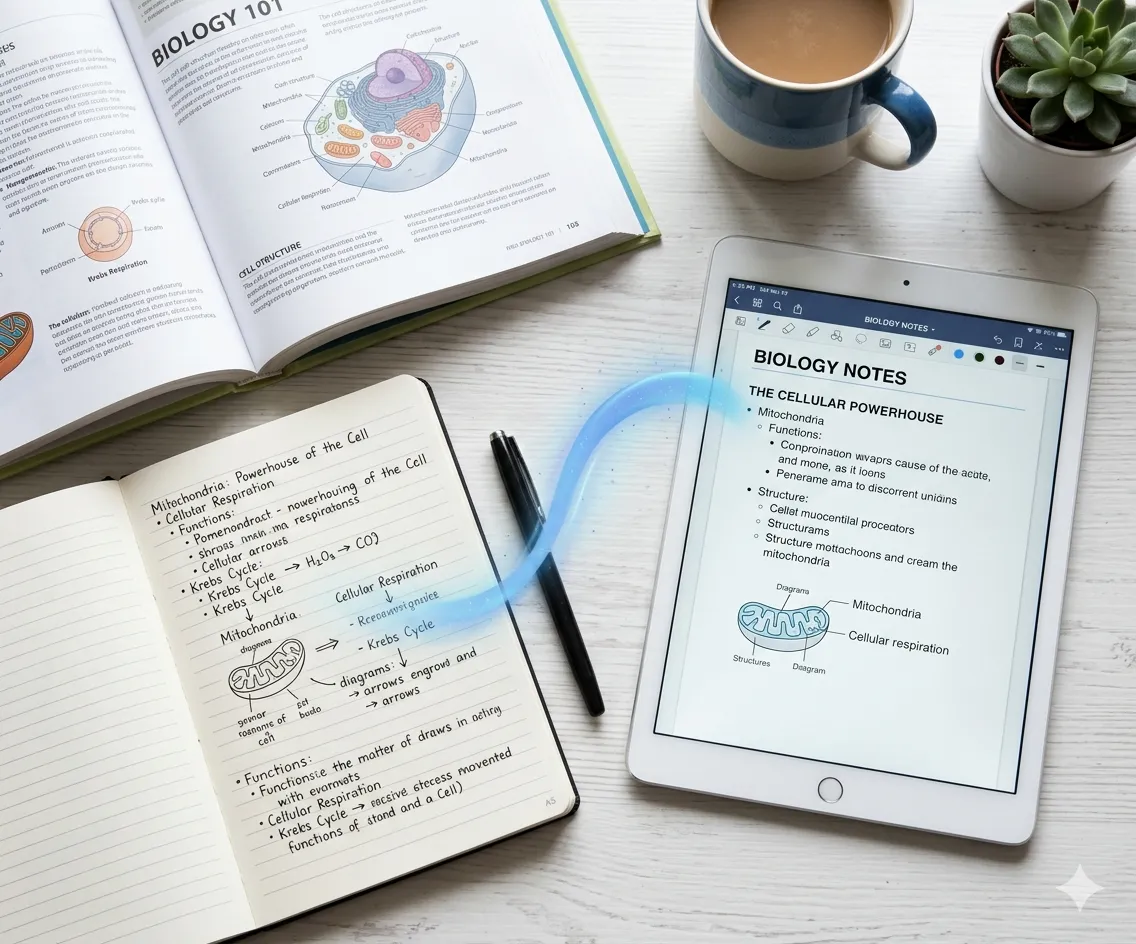
Educators and students work with recorded lectures that contain diagrams, equations, and slide content only visible on screen for a few seconds. iWeaver extracts those specific frames at original resolution and exports them as numbered image files, ready to paste into handouts, study notes, or SOP documents.
Extract Lecture Frames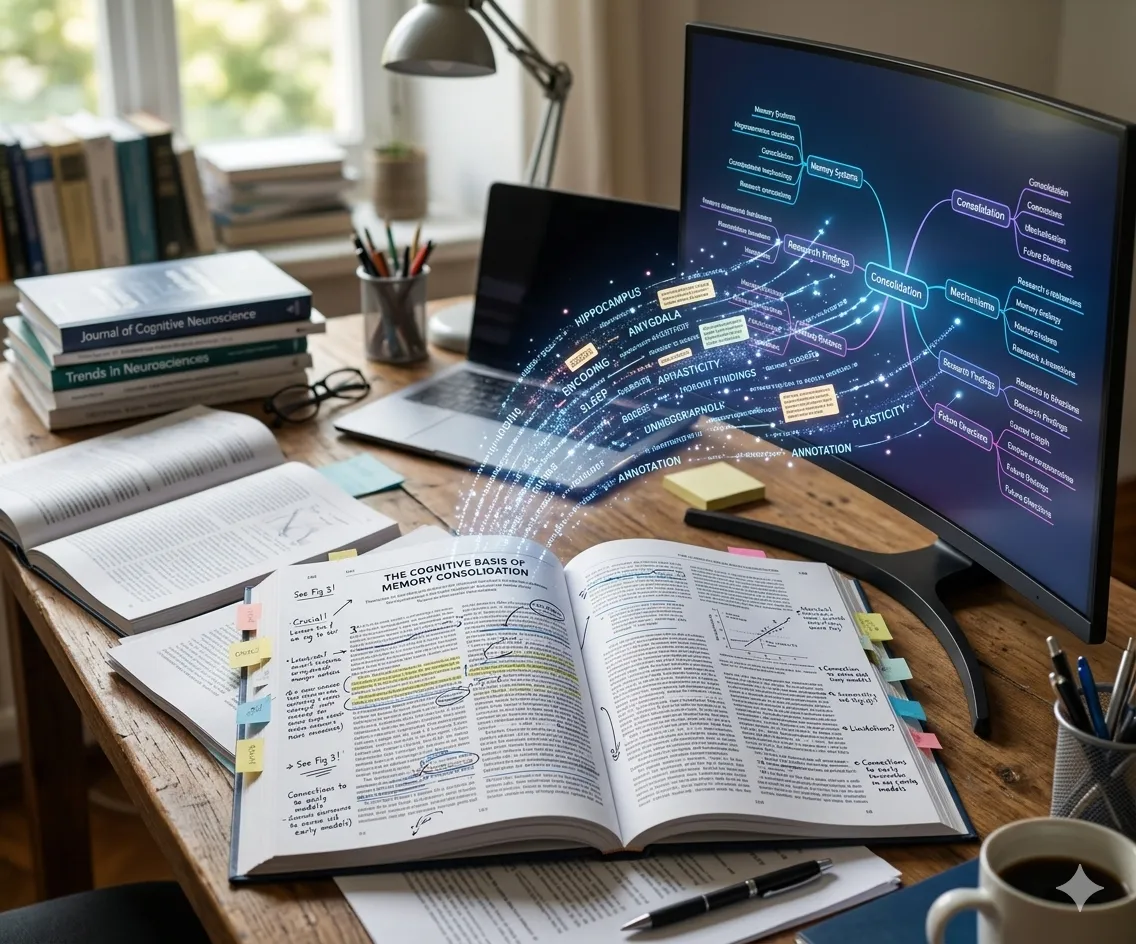
Thumbnail Selection
Content creators need a sharp, expressive still from their latest video to use as a YouTube thumbnail or social media cover image. Instead of pausing playback and taking a blurry screen grab, iWeaver navigates to the best frame and exports a clean JPG or PNG at the video's native resolution.
Grab Thumbnail FrameAction Moment Extraction
GoPro and action-camera footage contains split-second highlights that are nearly impossible to catch with a manual pause. iWeaver provides frame-by-frame stepping so you can isolate the peak moment of a jump, wave, or goal and save it as a standalone high-resolution photo for printing or sharing.
Extract Action StillsFrequently Asked Questions About Video Screenshots
Upload a Video, Capture Every Frame
Full-Resolution Exports Ready
Drop your video file into iWeaver and start navigating frame by frame. Export the exact stills you need as PNG or JPG — 3 free uses available every day.
Start Capturing Frames